
How to Set Up Inbound Dialing (Dialer & FaceTime)
Overview
Project Blue supports inbound calling for both the Dialer and FaceTime products. Once it's set up, calls to your Project Blue number ring directly inside the web app, Chrome extension and iPhone app. Answered calls are logged to your CRM (HighLevel, HubSpot and Close), and for HubSpot accounts with Auto-Create turned on, a new contact is created automatically if the caller isn't already in your CRM.
Dialer lines and FaceTime lines are set up differently, so follow the part that matches your line.
The two settings
Account setting: Settings → Dialer & FaceTime → Inbound calls. It's off by default. It controls whether inbound calls ring at all, and who receives them. When it's off, inbound calls aren't shown to anyone.
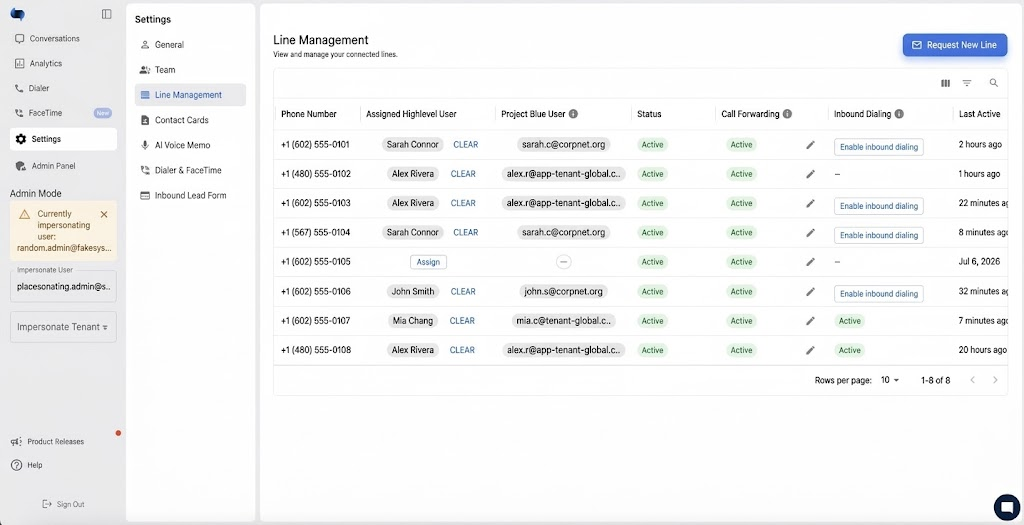
Line setting (Dialer lines only): the Inbound Dialing column in Line Management, which you turn on for each line.
Dialer lines need both. FaceTime lines only need the account setting.
Before you start
Dialer lines: the line needs an active Dialer subscription, which includes both outbound and inbound calling. You can subscribe from the Dialer page or from Settings → Dialer & FaceTime. See How to Make Calls Directly from Your CRM Using the Project Blue Dialer.
Dialer lines: inbound dialing is available on US phone numbers. Lines with a Canadian or other non-US number can't use it.
FaceTime lines: FaceTime Audio is a separate product, available by invitation. The line needs FaceTime enabled (it can't be an inbound-only line), the account setting turned on, and at least one person set to ring. No Dialer subscription, extra phone number or call forwarding is needed. For access, limits and troubleshooting, see FaceTime Audio: What It Is, What You Need and How to Use It.
Turning On Inbound Calls for Your Account
Go to Settings → Dialer & FaceTime.
Turn on Inbound calls. It's off by default.
Under Who receives inbound calls, choose:
Person assigned to the line — the line rings the person assigned to it (this option also covers a line assigned to a group). If the line is assigned to a group, every member of the group rings instead. Lines with nobody assigned, or assigned to a group with no members, ring the account owner. See How to Share One Line With Multiple Users (Line Groups).
Specific people — only the people you tick ring, regardless of line assignment. The list shows the account owner and individual team members who have accepted their invite. Groups aren't listed and are ignored with this option, so a group's members only ring if you tick them yourself.
This choice applies to the whole account, so you pick one rule or the other, not a mix. When more than one person rings on a Dialer line, everyone rings at the same time for about 30 seconds, and the first person to answer takes the call.
On the same page, you can also turn on Ring the conversation owner first. When a contact who already has a conversation owner calls in, only that owner rings for 20 seconds before anyone else. It's off until you turn it on. See Conversation Owners: Assign Conversations on a Shared Line.
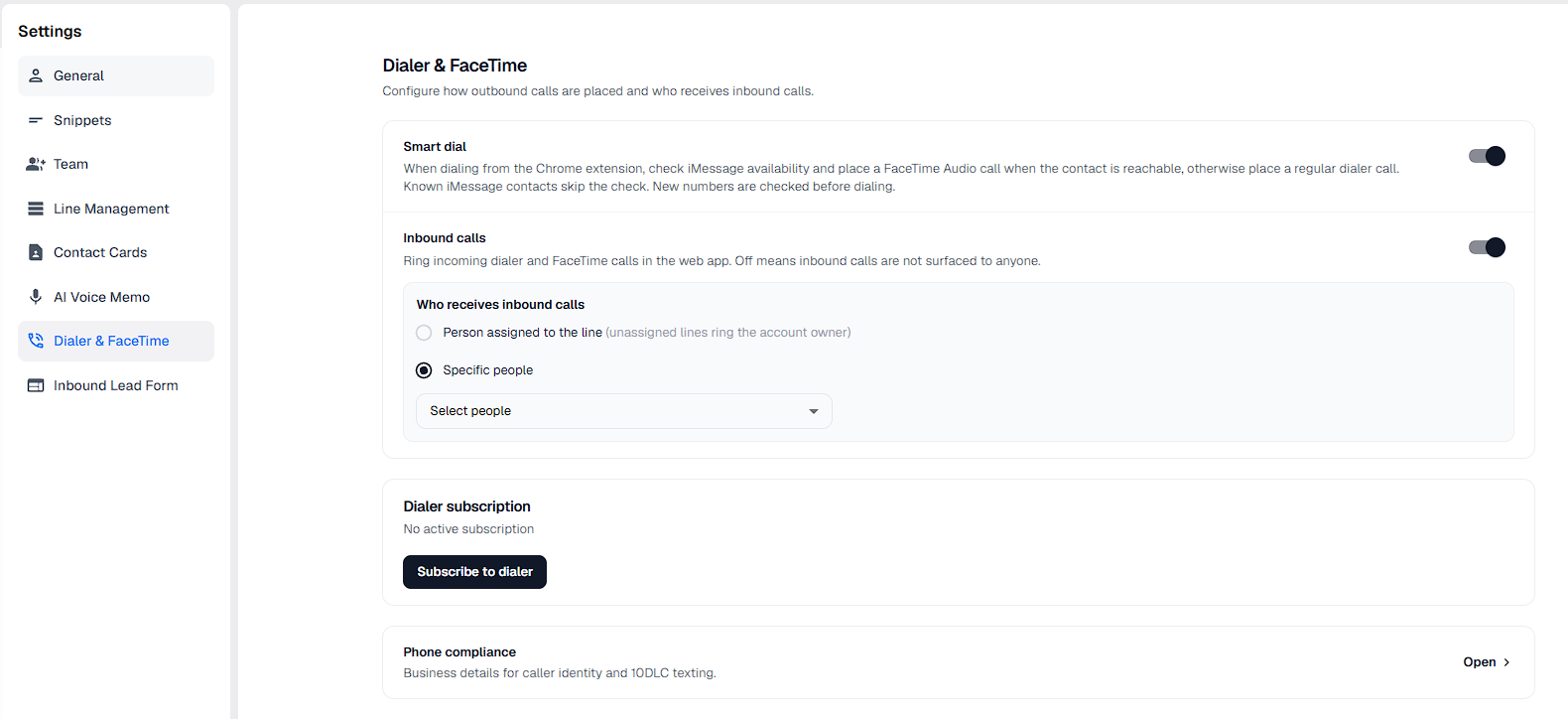
Check who will ring. With Specific people, only the people you tick get the call. If only one person is ticked, leads calling in won't reach anyone else. With Person assigned to the line, nobody rings until the assigned person, or at least one member of the assigned group, has accepted their invite, and the account owner isn't used as a fallback in that case. Ticking a person isn't enough on its own: each person also needs the iPhone app signed in with notifications allowed, or the web app or Chrome extension open and signed in, to hear the ring.
Turning On a Specific Line (Dialer lines)
Go to Line Management.
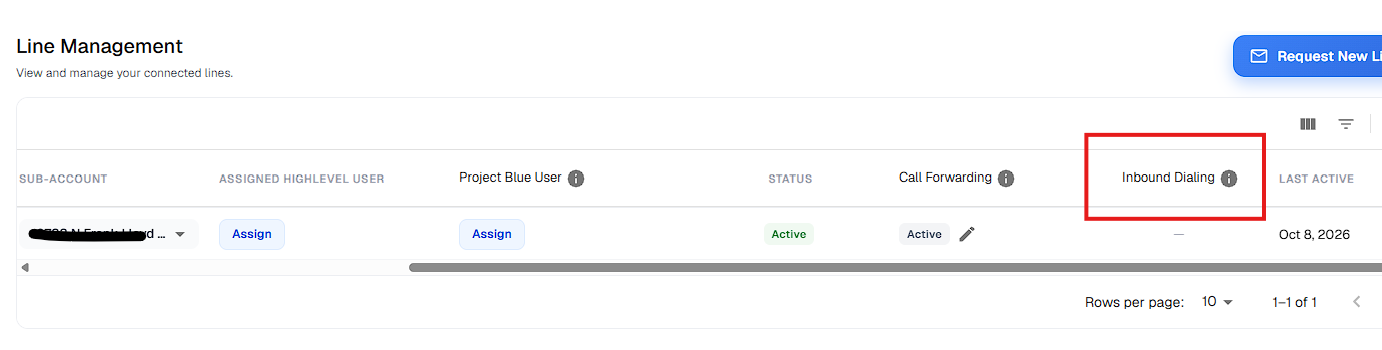
Find the Inbound Dialing column.
Click Enable inbound (or Activate inbound) on the line. This starts the setup, and Project Blue turns on call forwarding on the line automatically. The column then shows the line's status: Off, Pending or Active. A line stays Pending until its caller ID is verified and forwarding has taken effect. That usually takes 1 to 3 business days, and on some lines forwarding is instant. If the button changes to Activate inbound, click it once more.
Only account owners and admins can turn inbound on. Other team members see the status as read-only text. Once a line shows Pending or Active, you can't turn it off yourself.
If the column shows a gray dash instead of a button, inbound can't be turned on for that line. The message tells you why:
"Requires a dialer subscription on this line" — subscribe to the Dialer for that line.
"Shared and pool lines cannot use dialer inbound" — inbound isn't available for shared or pool lines.
"Inbound only lines cannot make or receive calls. Upgrade to enable them." — the line needs to be upgraded first.
Call forwarding
When you click Enable inbound, Project Blue sets up call forwarding on your line for you automatically, and the status shows Pending, then Active. It usually takes 1 to 3 business days, and on some lines it's instant. Calls start ringing in Project Blue once the line is Active. For more on forwarding, see Call Forwarding & Masking.
This replaces existing forwarding. If the line already forwards to a different number, turning on inbound replaces that number. The old number isn't saved. Project Blue asks "Replace call forwarding?" with Cancel and Continue before it does this. To go back, enter a number again under Edit call forwarding, which pauses inbound. Click Activate inbound again to turn inbound back on.
Call forwarding is set up on lines with US numbers, and the call forwarding number form only accepts US-style phone numbers. International numbers aren't supported.
Until inbound is on for a line, calls to it go wherever your phone carrier's forwarding sends them, and don't reach Project Blue.
How It Works (Dialer lines)
When someone calls your number, you'll get an incoming call notification no matter what page you're on in the web app or Chrome extension.
Click Accept to talk directly from inside Project Blue.
If no one answers, the caller goes to voicemail. You can set your own greeting, or choose to hang up instead. See How to Set Up Voicemail Greetings for Inbound Dialer Lines.
Once the call ends, it's automatically logged in your CRM.
Daily calling minutes
Answered inbound talk time counts toward the line's daily Dialer minutes, together with outbound calls. Ring time and voicemail don't count. See the Dialer article below for the daily limits.
CRM logging
HighLevel, HubSpot and Close: answered inbound Dialer calls are logged automatically.
HubSpot: turn on Auto-Create Contact in Settings → General → Inbound settings so an inbound call from someone who isn't in HubSpot creates the contact. The call is logged with its direction, duration, a recording link and its disposition.
Close: the caller's phone number needs to match a lead in Close, and the line's Sync to Close setting needs to be on.
Voicemail: a missed call that leaves a voicemail is logged a few minutes after the call, through the voicemail recording.
Availability
Web app: supported
Chrome extension: supported — keep the Project Blue panel open on your CRM tab to see the ring
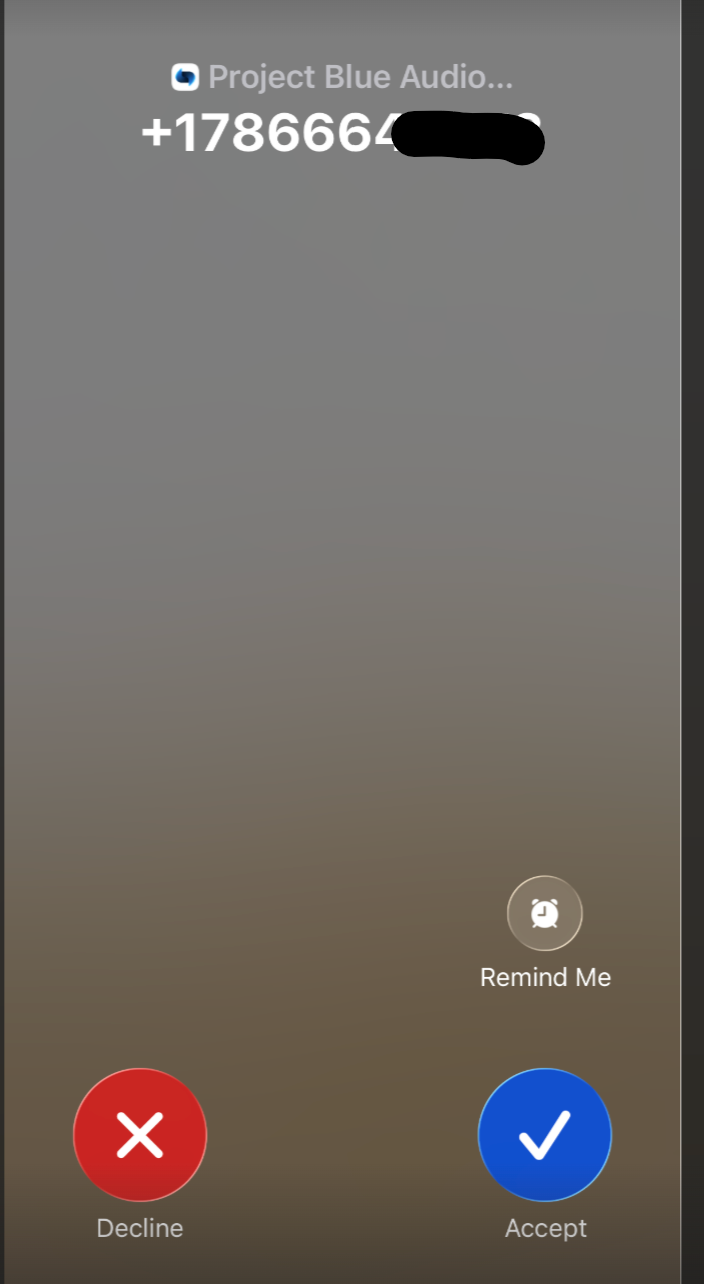
iPhone app: supported — calls ring like a normal call, including on the lock screen. Keep the app installed and signed in.
Android app: coming soon
Answering on your iPhone
Install the Project Blue mobile app and sign in. You can sign in with Google.
Allow notifications when the app asks.
When a call comes in, answer it like any phone call. The call shows as a Project Blue call.
FaceTime Lines
FaceTime lines work differently from Dialer lines:
Only the account setting (Settings → Dialer & FaceTime → Inbound calls) and the Who receives inbound calls option apply. The Inbound Dialing column and the call forwarding steps don't.
Calls ring in the web app and Chrome extension with Accept and Decline buttons, and send a push notification to the mobile app.
FaceTime calls don't go to voicemail. With Ring the conversation owner first on and If the owner does not answer set to Voicemail, the owner keeps ringing until the call ends. Choose Backup person or Everyone to move the call on.
Only answered, recorded FaceTime calls are logged to HighLevel, HubSpot and Close. Missed FaceTime calls aren't logged.
FaceTime calls don't count toward Dialer minutes.
For access, limits, recordings and troubleshooting, see FaceTime Audio: What It Is, What You Need and How to Use It.
Calls go to voicemail or "no one is available"
If callers hear voicemail or "No one is available to take this call," check these in order:
Inbound calls is on in Settings → Dialer & FaceTime. It's off by default, and it's the most common reason callers hear "No one is available."
The line has inbound turned on in Line Management and isn't a shared or pool line (Dialer lines). If the line isn't accepting inbound, callers hear "This line is not accepting inbound calls right now." If the line still shows Pending after 3 business days, contact Project Blue support.
The line has a US number. Inbound dialing and call forwarding aren't available on Canadian or other non-US numbers. Calls to those numbers ring with no answer.
Someone is set to ring. With Specific people, check who is ticked. With Person assigned to the line, check that the assigned person has accepted their invite, or that at least one member of the assigned group has. An empty group rings the account owner.
Each person can actually hear the ring. Someone rings on their iPhone only if the Project Blue app is signed in with notifications allowed. Anyone without that rings only while the web app or Chrome extension is open and signed in. If you tick eight people and only three have the app set up, the other five ring only when they have the web app or extension open.
Ring the conversation owner first is off, or set the way you want. When it's on, a contact with a conversation owner rings only that owner first. If the owner misses the call, the If the owner does not answer setting decides what happens next: voicemail, a backup person, or everyone.
The Dialer subscription is active (Dialer lines). If it lapses, people's apps stop registering for calls and callers go to voicemail.
Call forwarding on the line is working (Dialer lines). If callers reach your carrier's voicemail instead, contact Project Blue support.
If it still doesn't ring after these checks, contact Project Blue support.