Send iMessage - Line Selection
This allows the admin to select the line (phone number) the message will come from using the Phone Number field
Only device lines purchased that are on your account will display here.
If you don't have a specific reason to force messages to a particular line, we recommend using the standard default "Send iMessage" workflow instead, it automatically load-balances volume across your available lines. These line-selection overrides are only meant for cases where you need messages tied to a specific number (e.g. per-user or per-contact), and once you use them, you're responsible for managing that volume distribution yourself.
Navigate to the Highlevel "Automations" tab within your sub-account and search "Send iMessage (Assigned User)"
Select which line number to use for this workflow step using the dropdown.
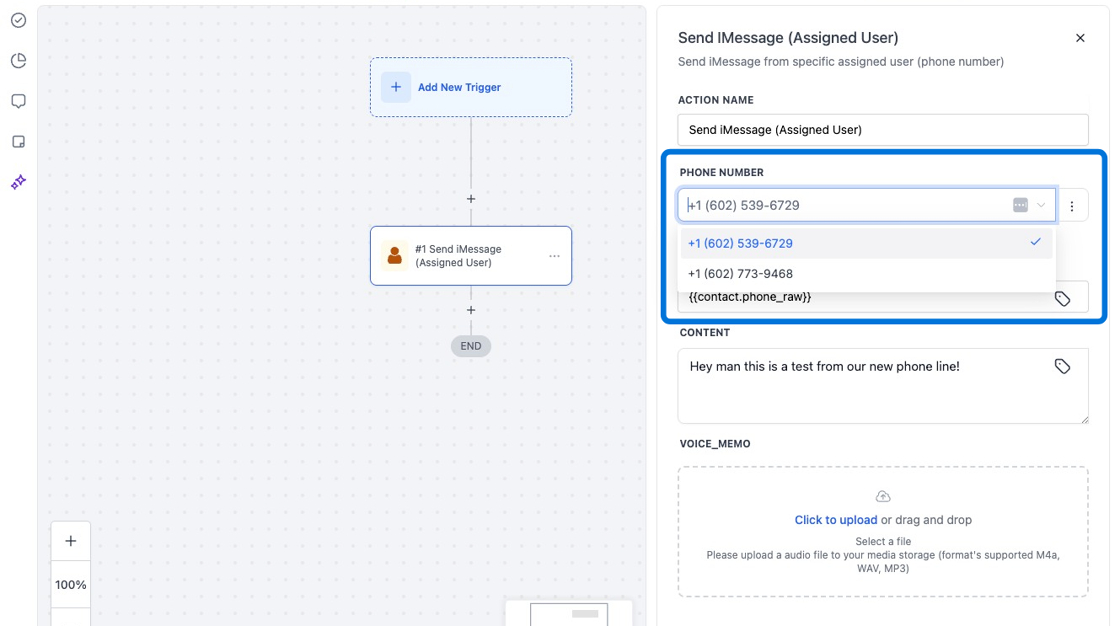
Something to note here is once a message to a contact is overridden using this automation workflow, all future messages communicated with this contact will come from this number.
Something to be aware of is if you're forcing a number to take precedence over another number, the same limits still apply for destinations.
Meaning you'll be in charge of load balancing the messaging volume yourself, unlike using our other automation which handles the workflows.
Use-cases of this automation step
These workflows can be used in countless ways depending on your operations, use-case, and how in-depth the required setup is.
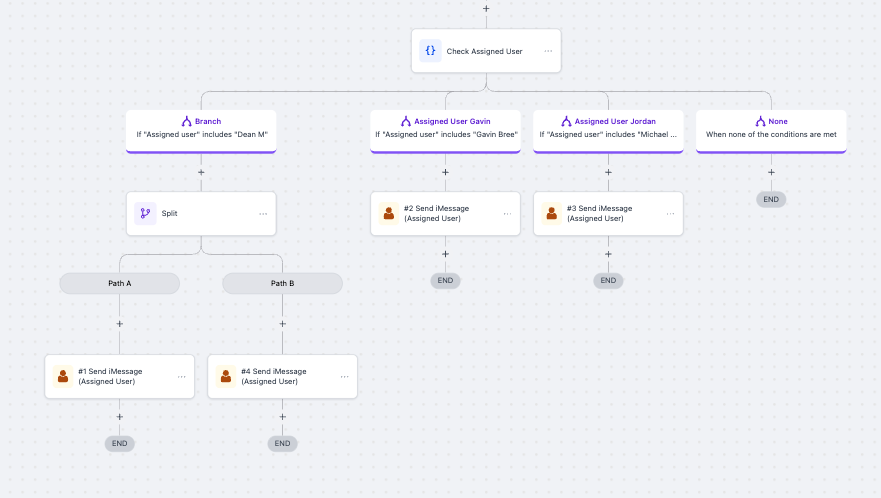
In the example below, the messages are split up dependent upon who the assigned user is using an if/then block. Ie if the assigned user of the contact is "Gavin," it'll select Gavin's personal line to send the message from.
Any further communications coming with that contact will come from Gavin's number (the number assigned in the Send iMessage (Assigned User) workflow)

Splitting Volume using Assigned user lines
Below is the example of how a user would split up the volume between 2x lines for a user using the Split function. Ie if you're using user assigned lines, a user in your org could have much more volume than others.
In the example below, the split is set to split 50/50 equally between the 2x lines below the branch logic.
As a reminder, all of this is natively handled using our default send iMessage workflow where there's no need at all to split up volume
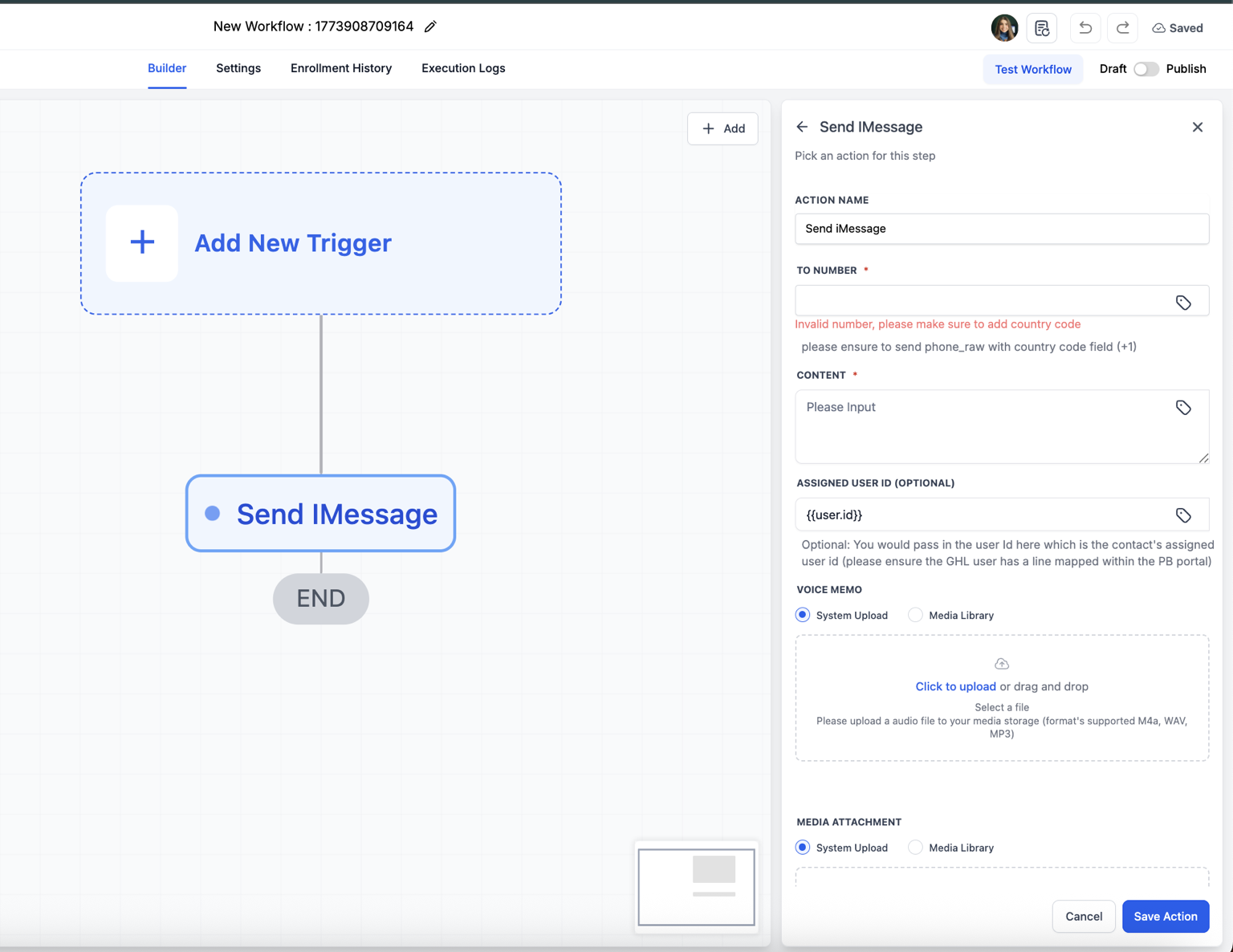
We also want to add another option:
When using the Send iMessage action from Project Blue, there is a parameter called User ID. You can simply pass the custom value {{user.id}} in this field.
This allows the message to be sent from the line assigned to that specific user. The line must be mapped in the Project Blue portal under:
Settings → Line Management → Assigned HighLevel User