How to Install Project Blue
Install Project Blue into your CRM
How do i know if i need to install Project Blue?
You can know if Project Blue is already installed in your CRM if the following button is already in the location settings < Conversation Providers.
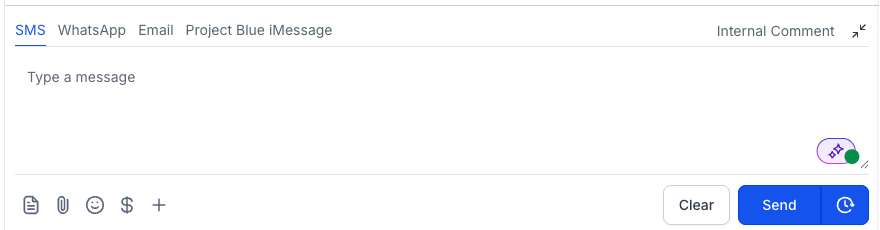
Or by seeing the "Project Blue iMessage" in the conversation's tab
You'll see "Project Blue iMessage" listed as an option
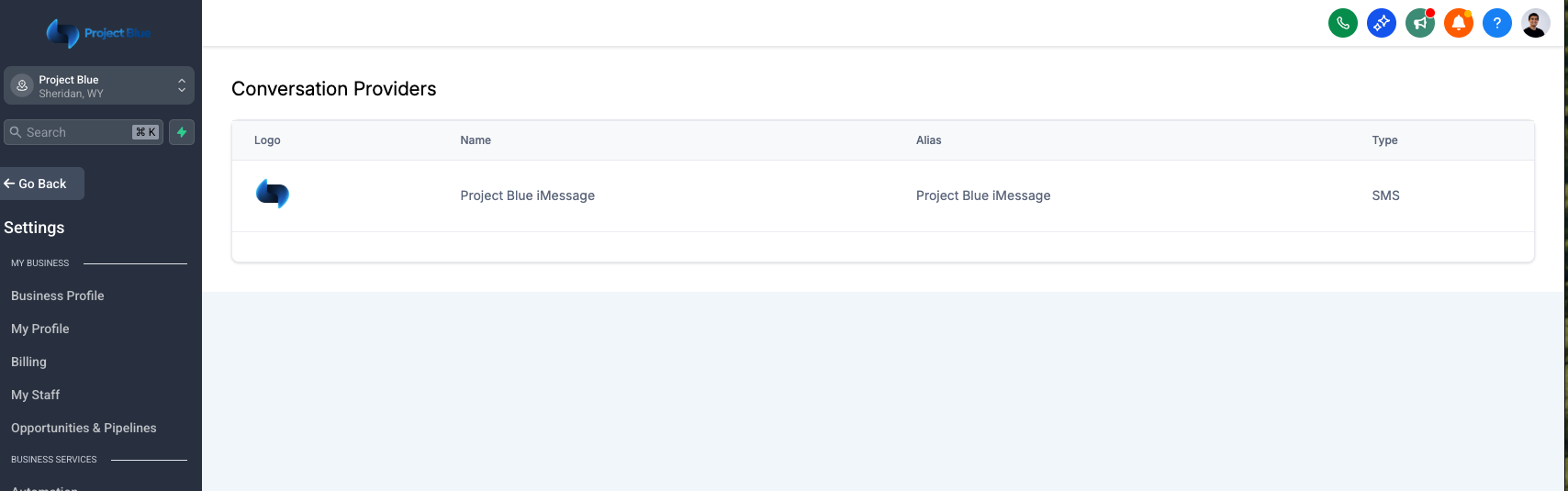
You can also see "Project Blue iMessage" listed as a conversation provider within the conversations
This will be available and shown to users, if you want a white-labeled version of this without our branding, contact our support team with help to give you the script to make this happen
Go to Agency Dashboard
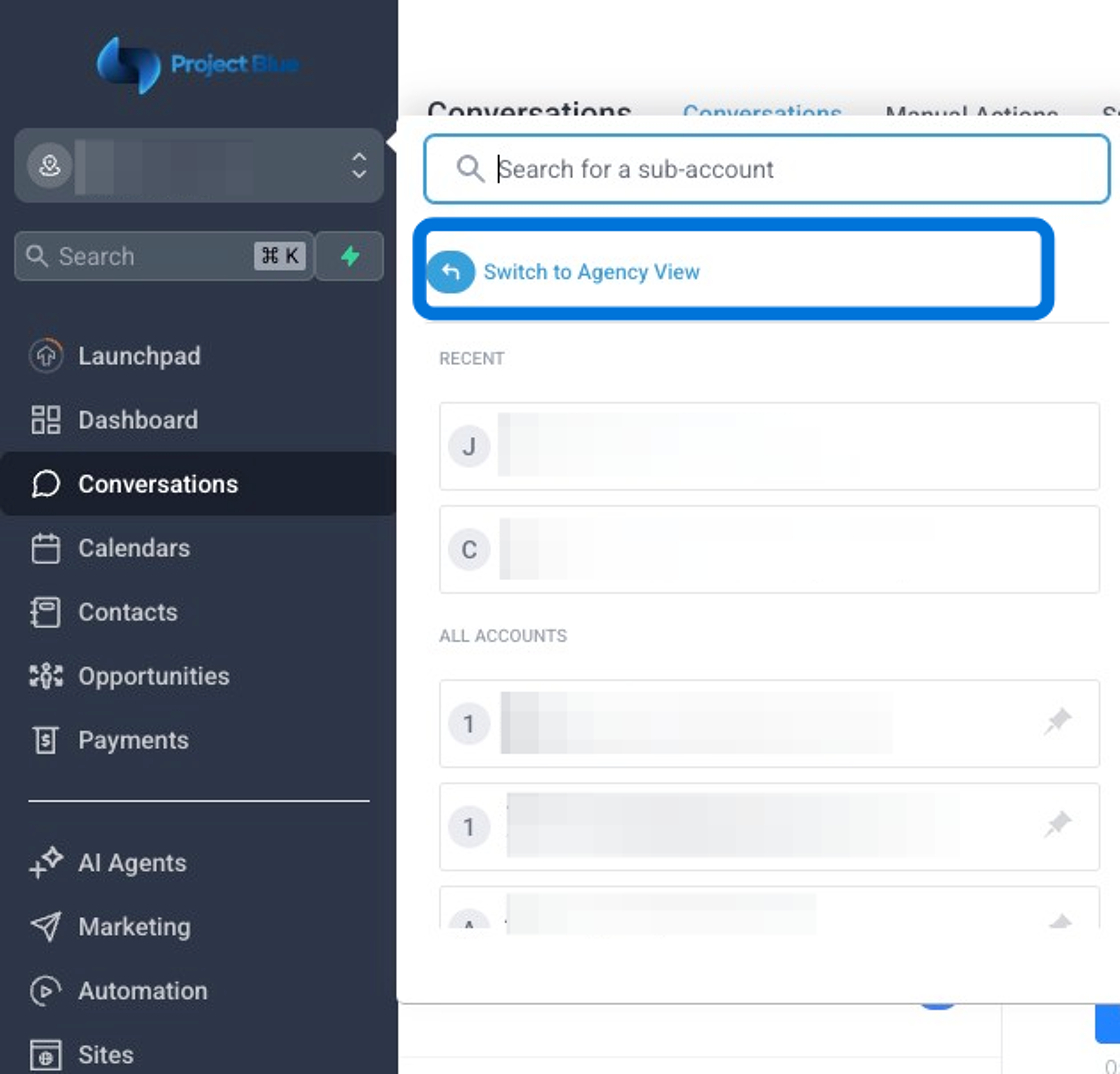
IMPORTANT: If you are unable to “switch to agency view,” then you likely don’t have admin access and need to reach out to your CRM admin for help.
Click on Your App Marketplace in the Agency View
Search for "Project Blue" in the app marketplace
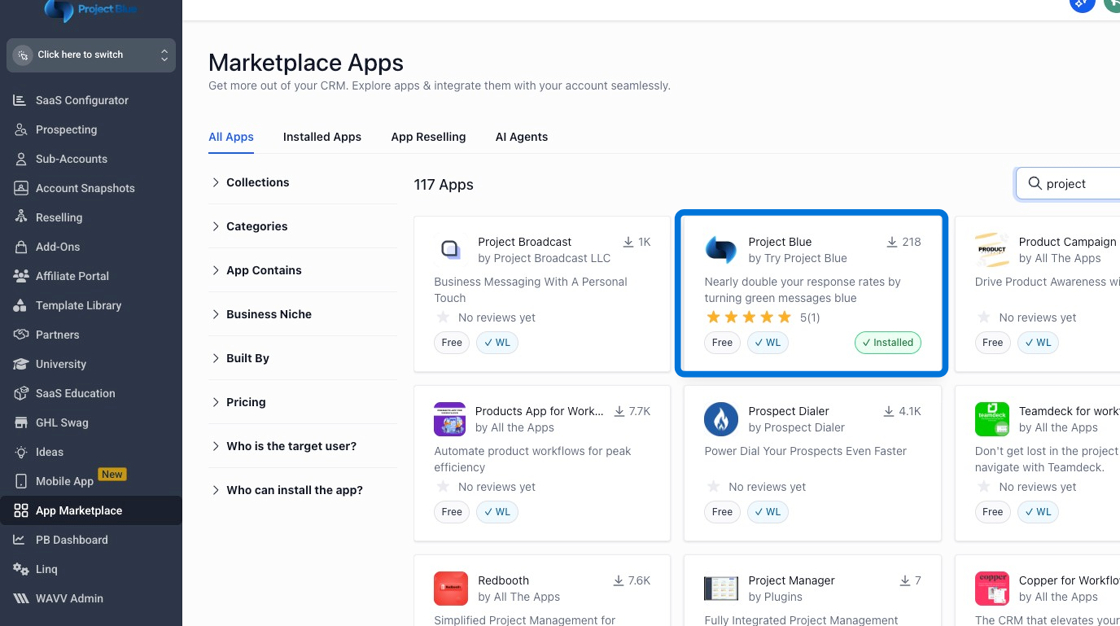
A link to the Project Blue App can also be found here!
https://app.gohighlevel.com/integration/6761261f25b49c465709eda8
Click "Install"
Once you click install, a window will come up that will allow you to select in which accounts you would like to install Project Blue. By default, Project Blue will be installed in all accounts (see circle), but if you would like to only install Project Blue in certain subaccounts, you can do that as well by checking the boxes (see arrow).
If you've already installed our plugin you'll see "Install to more sub-accounts" as shown in the image below
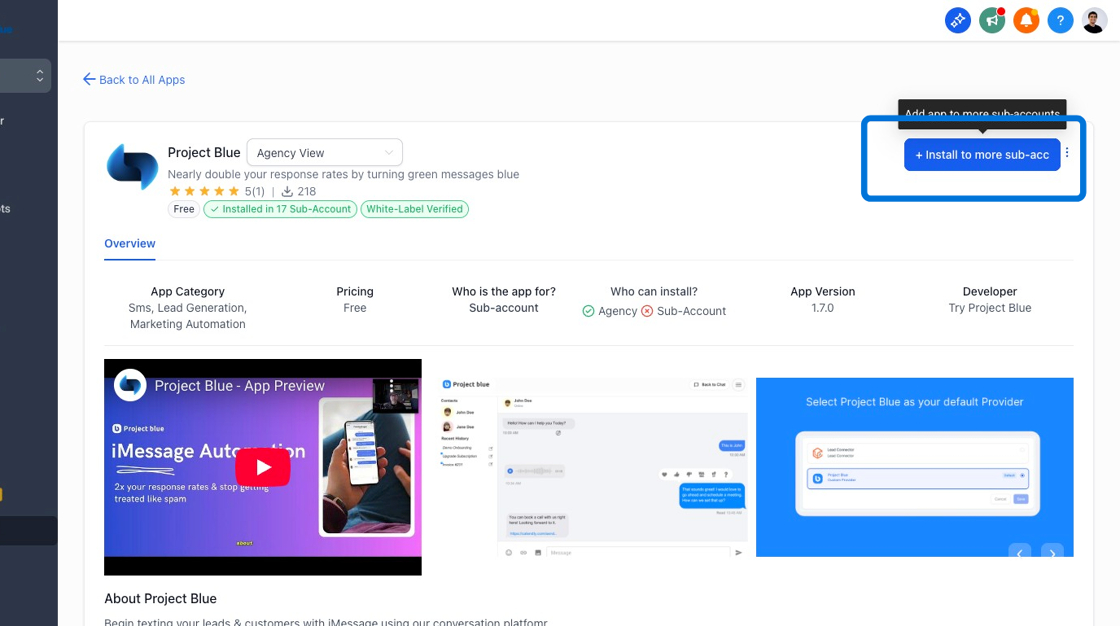
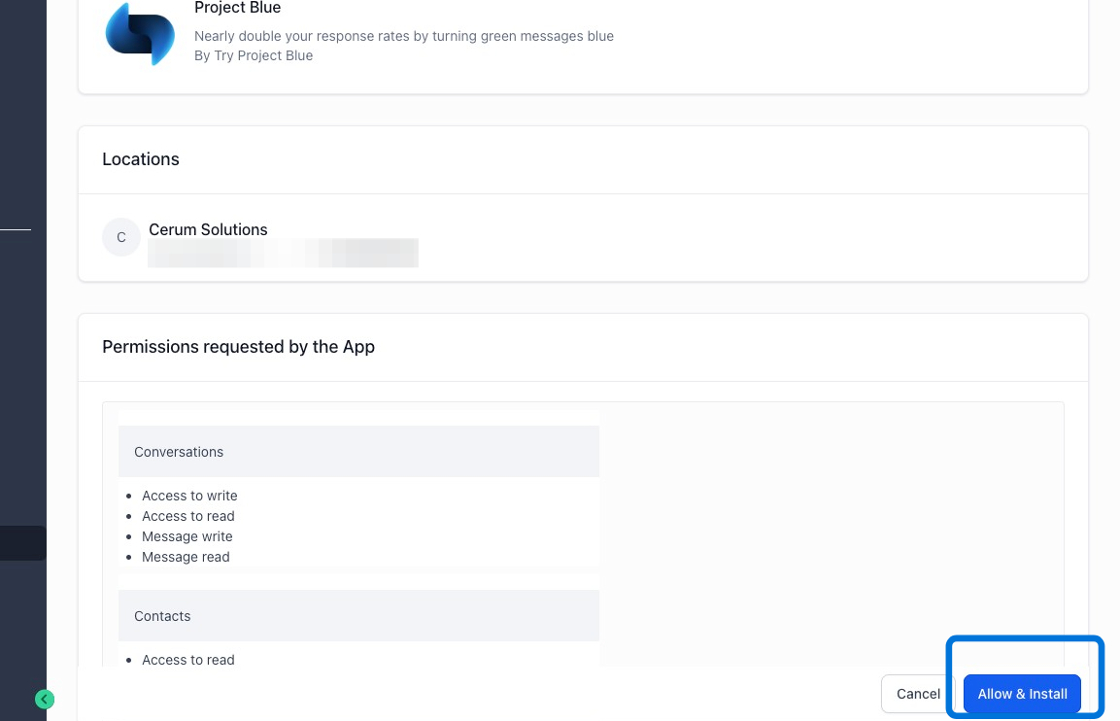
Click continue, and then click “allow and install” in the bottom right corner. Sometimes, a chat widget can cover this button–please scroll down on the page if this is the case.
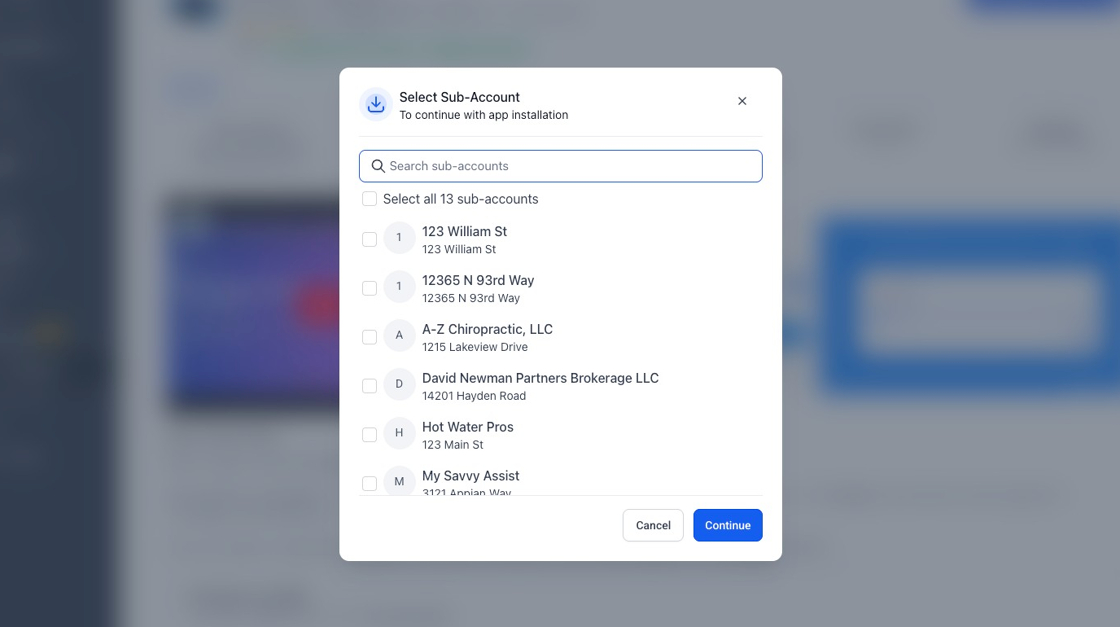
Click "Allow & Install"