Start Messaging
Once you’ve installed the Project Blue app and your messaging lines have been mapped to your account, you’re ready to start sending messages.
Our Support Team will reach out once your lines are fully configured, and from there, you can start messaging immediately.
💬 Start Messaging via Conversations
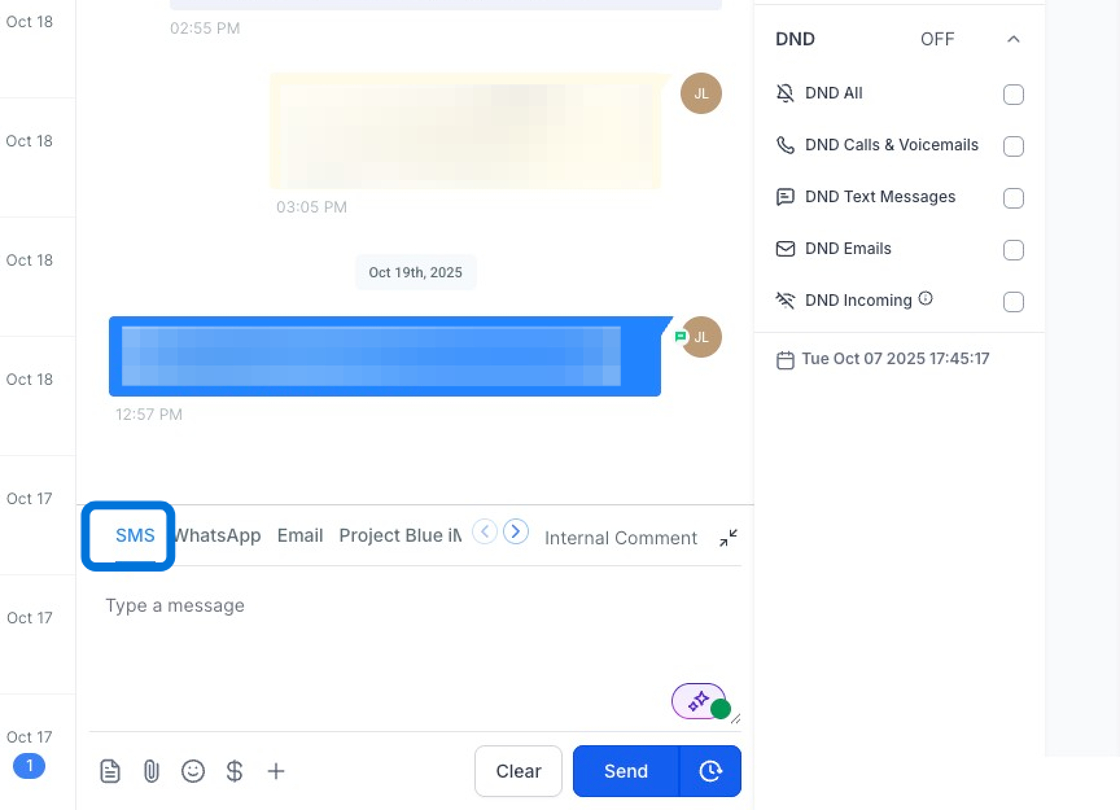
If you've set the SMS provider default over to Project Blue, the SMS option (pre-selected) will also work to send iMessages & text messages as it's using our provider.
steps on this can be found 👉 here
You can start messaging directly inside your CRM under the Conversations tab or through the selected contact!
Navigate to Conversations in your CRM.
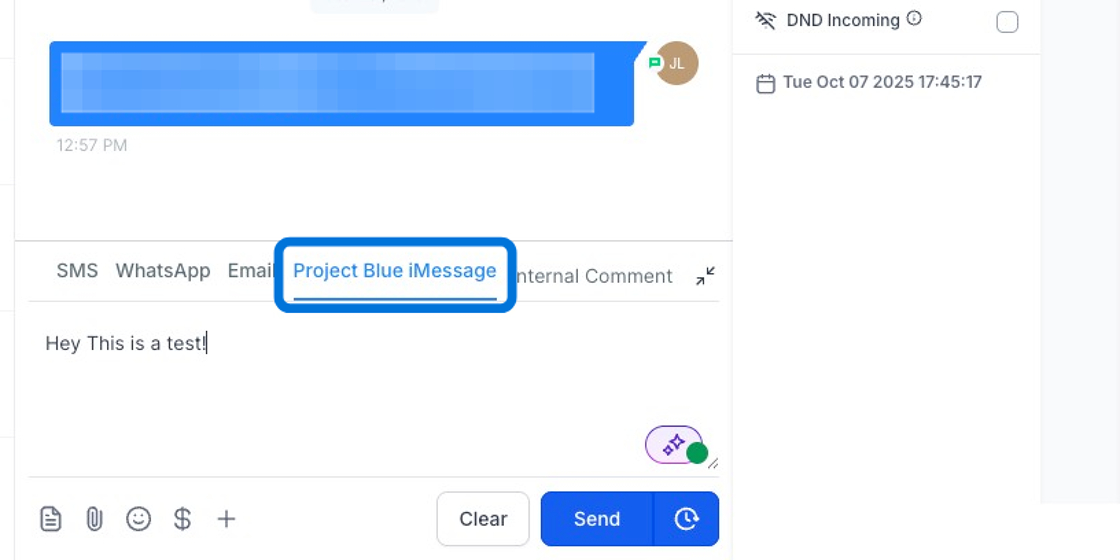
In the Provider dropdown, choose one of the following:
Project Blue iMessage: For blue bubbles and SMS texts
(Only works if you have default provider set) SMS: Blue bubbles and SMS texts. Otherwise it's just using the default LC SMS system
⚙️ Automations
The other way to utilize the full use and capabilities of iMessages is to start sending text messages out via the Automations workflows from GHL.
Combined with Highlevel's powerful and robust automation builder, you can built unique automations to send messages and replies based on different triggers, new workflows, sequences, etc.
Project Blue automations can either be added to new automations or existing ones
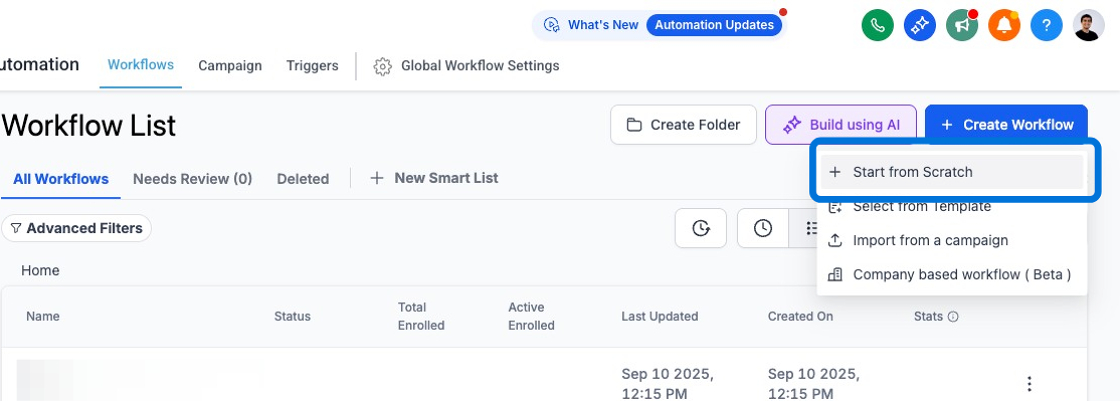
For a new automation Click "Create Workflow" then "Start from Scratch"
Click the "+" sign to add a new workflow action
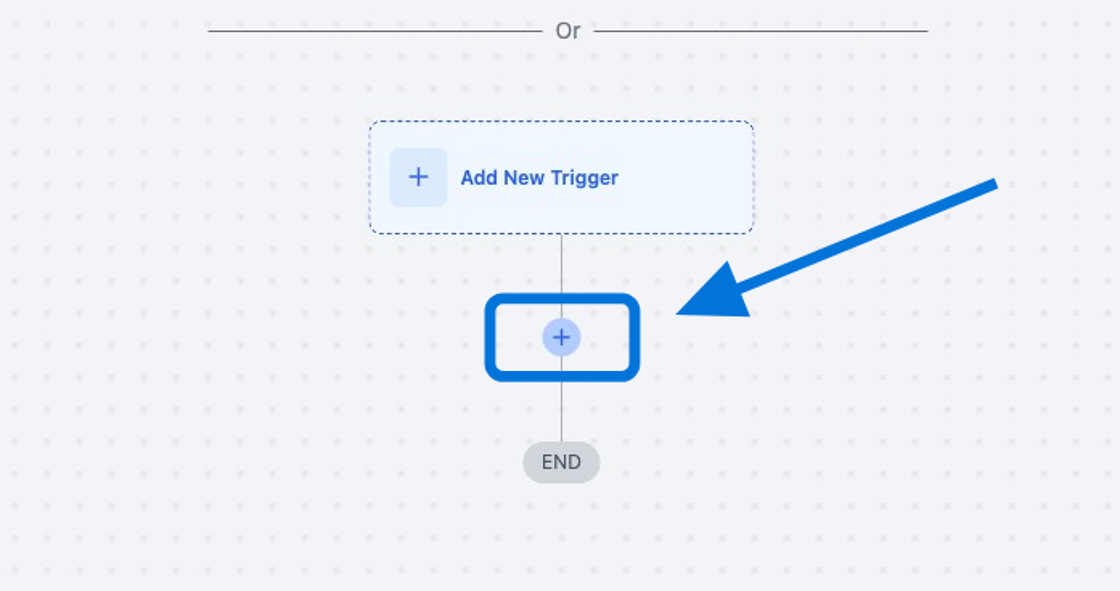
In the actions you can select "Project Blue" to get a list of the workflow actions available on your canvas
You'll see that workflow actions have a cost associated with them as $0.01 / execution. This is the default pricing that Highlevel sets for custom workflow executions. Project Blue does NOT charge for these custom actions
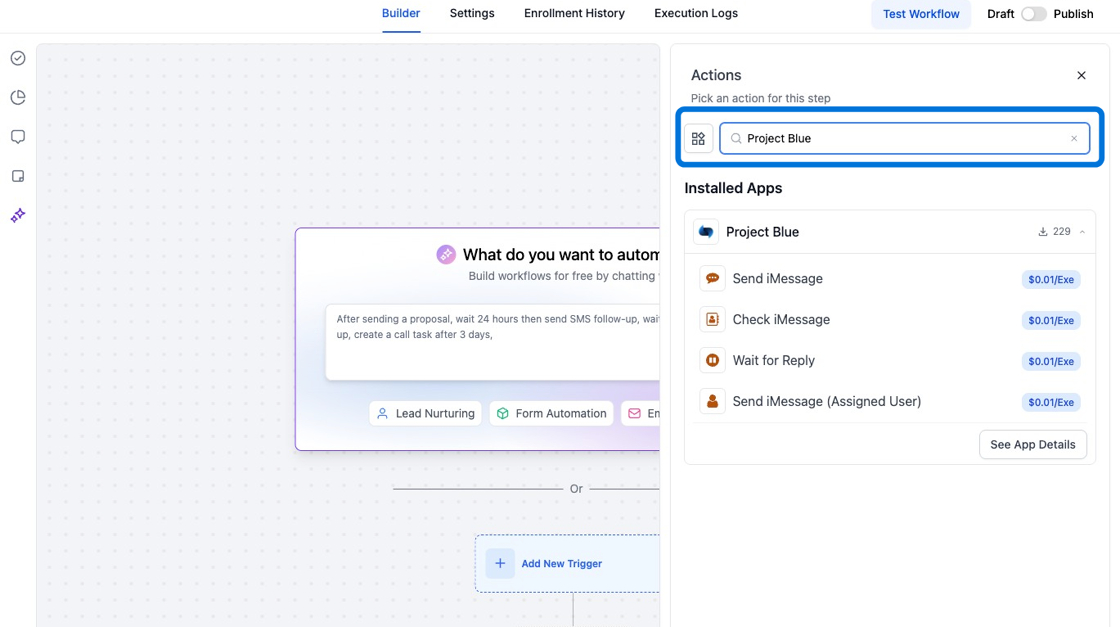
You can purchase a premium execution package for $10 / month through HighLevel which grants access to 10,000 custom premium workflow actions provided in the packages. You can check this out here or with the link below:
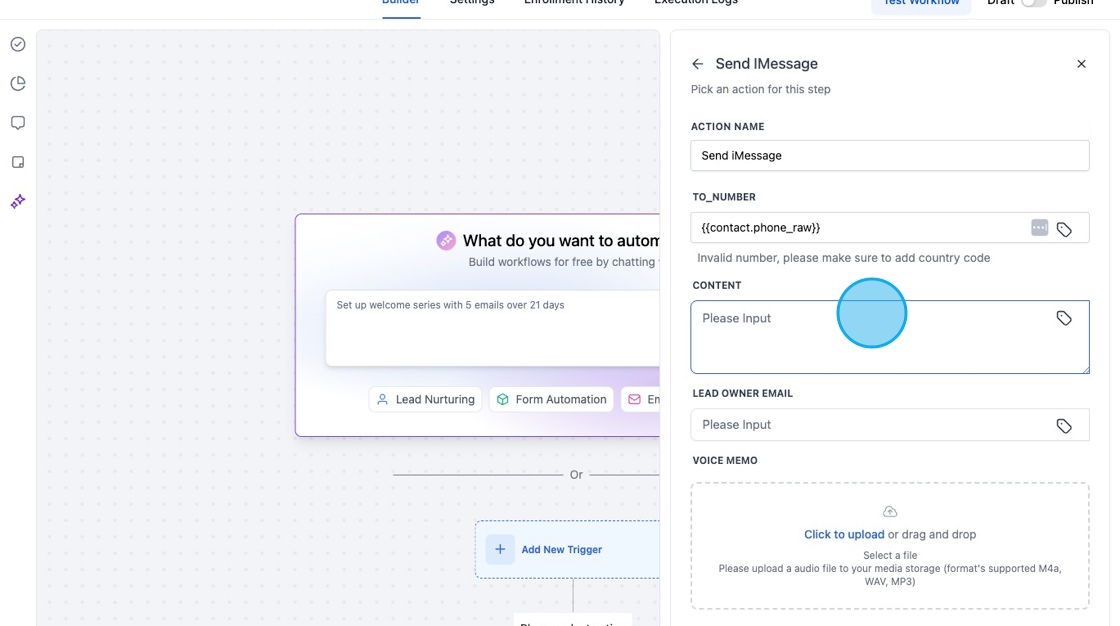
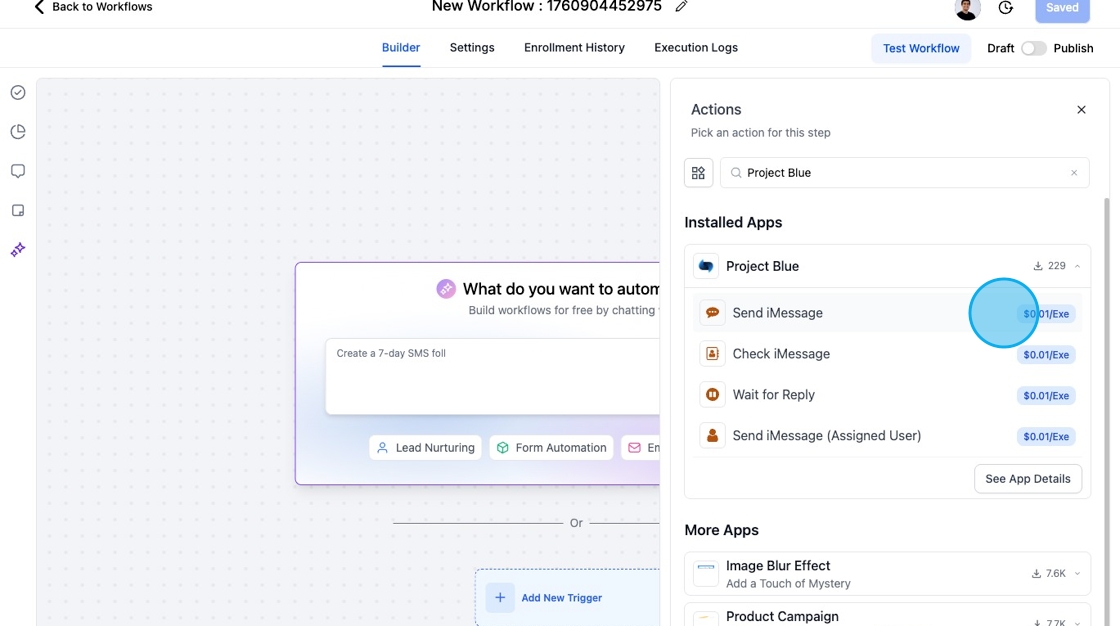
Click the Send iMessage Workflow
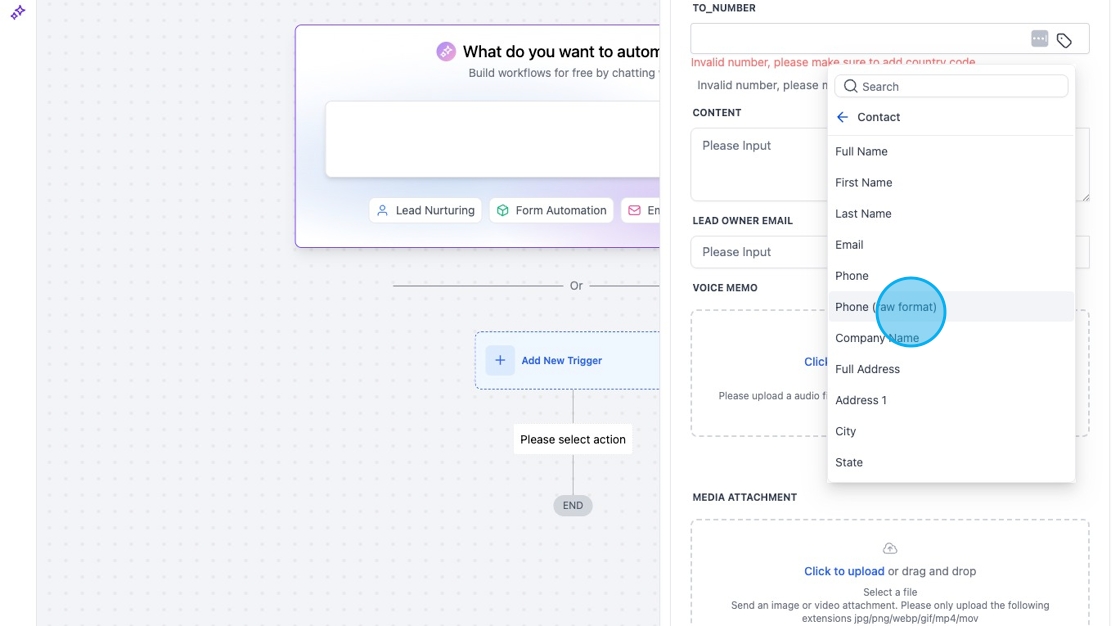
In the TO_NUMBER field select Contact > Phone (Raw format) to ensure consistency with phone numbers
If you use the wrong field, there can be unintended consequences when it comes to deliverability, as our system can mix up country codes.
Add your message content in the "CONTENT" field and click "Save" in the bottom right